User Administration in Linux 🐧
what is user and group? how to manage them? 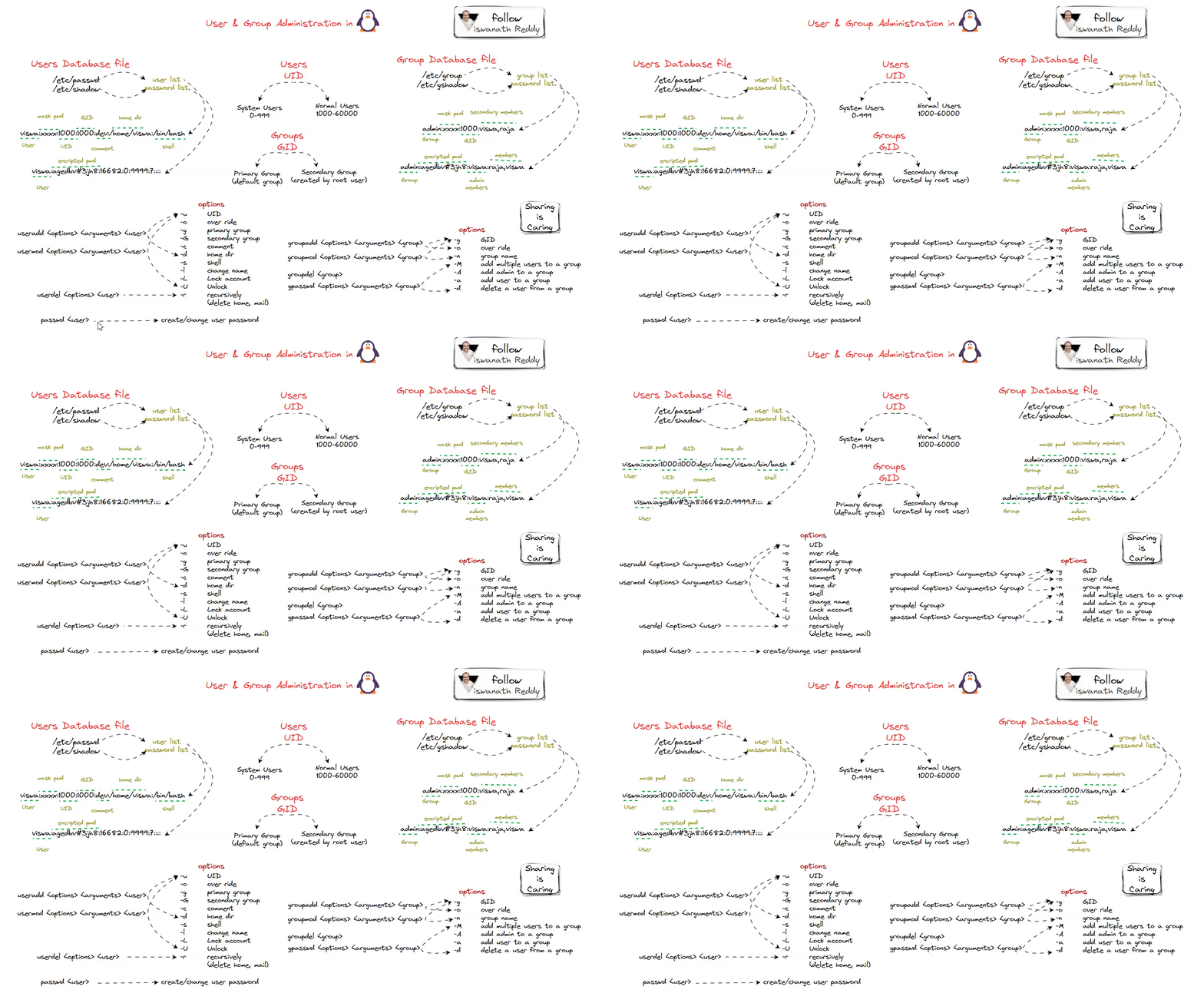 Linux User Admin
User Management:
In Linux, a user is an individual who interacts with the operating system and its resources. Users are essential for managing system security, access control, and resource allocation etc.
Type of Users:
In Linux, there are two primary categories of users: normal users and system users. These categories are used to differentiate between users based on their intended purposes and system roles:
1. Normal Users (Regular Users):
Purpose: Normal users, also known as regular users, are individual human users who interact with the Linux system for general computing tasks and purposes. They use the system for tasks like web browsing, word processing, programming, and other everyday activities.
Attributes:
Normal users have login access to the system and can log in through various methods, such as local terminals, SSH, or graphical desktop environments.
Each normal user typically has a home directory where they can store their personal files, documents, and configuration files.
Normal users are assigned unique usernames and user IDs (UIDs) for identification.
Permissions: Normal users have limited system-wide privileges. They can perform actions within their own home directories and may have access to additional resources based on their group memberships and file permissions. However, they usually cannot perform administrative tasks that affect the entire system.
2. System Users:
Purpose: System users, also known as system accounts or daemon accounts, are user accounts created for the sole purpose of running system services, daemons, or background processes. They are not intended for human interaction but rather to facilitate the execution of specific system tasks.
Attributes:
System users often do not have login access, meaning they cannot log in to the system interactively. Instead, they are typically configured with a disabled or non-existent login shell.
These users are used to manage and isolate the execution of system-related processes and services. Examples include web server processes (e.g., www-data), database server processes (e.g., mysql), and system monitoring services (e.g., nagios).
System users are usually assigned UIDs in a specific range (e.g., UIDs below 1000) to distinguish them from regular users.
Permissions: System users have limited permissions and access rights, which are typically defined by the service or process they are associated with. They are often configured to have access only to the resources required for their specific tasks. The primary goal is to enhance system security by isolating system-level processes from regular user activities.
User Database file:
In Linux, user account information, including usernames, user IDs (UIDs), home directories, login shells, and password hashes (encrypted passwords), is typically stored in various files and databases located under the /etc directory. The primary files and databases used for managing user accounts in Linux include:
1. /etc/passwd:
This file contains user account information in a colon-separated format.
Each line represents a user account and includes fields such as the username, encrypted password
(usually "x" or "*"), UID, GID (Group ID), user’s full name or description, home directory, and login shell.Here’s an example of a line from
/etc/passwd:1
username:x:1001:1001:John Doe:/home/username:/bin/bash
2. /etc/shadow:
The /etc/shadow file contains password hashes and other password-related information for user accounts.
It is readable only by the superuser
rootto enhance security.User passwords are stored as encrypted or hashed values in this file.
Sample entry in
/etc/shadow:1
username:$6$3Q7vR8C6$szR.MJ2LecEjg2sldLoZiZQRQgFtP3U5akDXV/0vGtsnJ.TiWz1ZsBNg/0X7L2wKzzMy6j23wbWTBjz/ICDsz/:18500:0:99999:7:::
User Creation:
To create a user in Linux, you can use the useradd command. Here’s the basic syntax for creating a user:
1
sudo useradd [options] username
Replace [options] with any desired options (such as specifying the user’s home directory or shell) and username with the name of the user you want to create.
Here’s a simple example of creating a user named john:
1
sudo useradd john
After running this command, a user account for john will be created with default settings. However, you may want to customize the user account by specifying additional options. Here are some commonly used options:
-m: This option is used to create the user’s home directory if it doesn’t already exist.
-s shell: You can specify the login shell for the user. For example, to set the user’s shell to Bash (the default shell for most Linux distributions), you can use -s /bin/bash.
-d home_directory: You can specify the user’s home directory. By default, it will be created under the /home directory with the same name as the username. For example, to set a custom home directory, you can use -d /path/to/home/directory.
-g initial_group: You can specify the user’s initial login group. By default, a group with the same name as the username is created. You can use -g to specify a different initial group.
Here’s an example of creating a user named jane with a custom home directory and shell:
1
sudo useradd -m -d /home/jane -s /bin/bash jane
After creating the user, you should set a password for the new user account using the passwd command:
1
sudo passwd username
Replace username with the actual username. You’ll be prompted to enter and confirm the new password.
Once the user account is created and the password is set, the user can log in and start using the Linux system with the specified settings.
Remember to use sudo before the useradd and passwd commands to run them with superuser privileges, as user management typically requires administrative rights.
Group Management:
In Linux, groups are collections of user accounts that are used for various purposes, such as managing permissions, access control, and resource sharing. Groups allow you to organize users with similar roles or access needs.
Types of groups:
In Linux, both primary and secondary groups play essential roles in managing file and directory permissions, controlling access to resources, and organizing users into groups for various purposes.
1. Primary Group:
- Each User Has One: When a user account is created, it is associated with a primary group. Each user can have only one primary group.
- Default Group: By default, the primary group usually has the same name as the username. For example, if a user account named
aliceis created, a primary group namedaliceis also created. - File Ownership: Any files and directories created by the user are initially owned by their primary group. This means that the primary group has specific permissions over these files.
- Access Permissions: The primary group’s permissions on the user’s files can be controlled using file permissions
read, write, executeand group ownership. - Changing the Primary Group: Administrators can change a user’s primary group using the usermod command. This might be necessary when organizing users for specific projects or tasks.
2. Secondary Group (Supplementary Group):
- Multiple Groups: In addition to the primary group, each user can belong to multiple secondary groups. These secondary groups are sometimes referred to as supplementary groups.
- Resource Access: Secondary groups allow users to access files and directories that belong to those groups. This is particularly useful for sharing resources among users with similar roles or projects.
- Changing Secondary Groups: Users can be added to or removed from secondary groups using the usermod command or by modifying the user’s entry in the
/etc/groupfile. - File Access Permissions: When a user is part of multiple groups, file and directory access permissions are determined based on the most permissive group. This means that the user can exercise the permissions of any of their secondary groups when accessing resources.
For example, let’s say there are three users, Alice, Bob, and Carol, and two groups, project1 and project2.Alice’s primary group is alice, and she is also a member of the project1 secondary group. Bob’s primary group is bob, and he is a member of both the project1 and project2 secondary groups. Carol’s primary group is carol, and she is a member of the project2 secondary group.
If Alice creates a file, it will be owned by the “alice” group (her primary group). However, if Bob creates a file, it will be owned by the “project1” group (his primary group) because he is part of both “project1” and “project2” groups.
Understanding and effectively managing primary and secondary groups in Linux allows for fine-grained control over file access permissions, which is particularly important in multi-user and collaborative environments. It helps ensure that users can work on shared projects while maintaining proper access control and security.
Group DB:
In Linux, the group database is typically stored in the /etc/group file. This file contains information about user groups on the system, including group names, Group IDs (GIDs), and the list of users who belong to each group. The /etc/group file plays a crucial role in managing user access permissions and resource sharing among users in a Linux system.
Here’s the typical format of the /etc/group file:
1
groupname:x:GID:member1,member2,...
groupname: This is the name of the group. It’s an alphanumeric identifier used to represent the group.
x: Historically, the password field used to be in this position, but modern Linux systems rarely use group passwords. It is usually set to “x” or “”.*
GID: This is the numerical Group ID associated with the group. It uniquely identifies the group within the system.
member1,member2,…: This is a comma-separated list of user accounts that belong to the group. These users are considered members of the group and have group-level permissions.
Here’s an example of entries in the /etc/group file:
1
users:x:1000:user1,user2,user3 developers:x:1001:user2,user4
In the above example, there are two groups:
usersanddevelopers.The
usersgroup has a GID of 1000 and includes the usersuser1,user2, anduser3.The
developersgroup has a GID of 1001 and includes the usersuser2anduser4.
Administrators can manually edit the /etc/group file to create, modify, or delete groups and manage group memberships. However, it’s often more convenient to use user management commands like groupadd, groupmod, and delgroup for these tasks, as they ensure data consistency and security.
Consider subscribing my substack.